Tobo HDMI Wireless Display Receiver WiFi 4K 1080P Mobile Screen Cast Mirroring Adapter Dongle for i-Phone Mac iOS Android to TV Projector Support Miracost Airplay DLNA-TD-853WA.




Price: ₹3,999 - ₹2,089.00
(as of Aug 28, 2025 10:10:31 UTC – Details)
Product Description
Tobo Upgraded Dual Band 2.4G Screen Mirroring Adapter

This new SmartSee Wireless display adapter is designed with extending HDMI cable which solves the shortcome of the first generation. The upgraded one is much easier to be plugged into any HDMI port without getting stuck.
Support Google Home App casting on Android device and Google brower casting on Windows. Support all unencrypted content on iOS device.
Support H.265/HEVC Decoder, support 4K(3840 X 2160) and 1080P resolution.
No Need Switching in Miracast Airplay DLNA Modes.
Warm Tips:
This item is to cast the whole screen of your mobile device to HDMI display wirelessly. This item works with any display which has an HDMI port.
Please confirm that your cell phone or tablet supports WIFi CERTIFIED Miracast or iOS 9.0+ before purchasing.
Please power this item with 5V/1A at least via USB, so it ensures enough power supply.

Turn your HDTV into a smart TV with Smart See Wireless display adapter .
What is this item?
It is a Wireless Display Adapter, what you see on your mobile device(smartphone/tablet), you can see on a big screen(TV/monitor/projector) via this adapter.
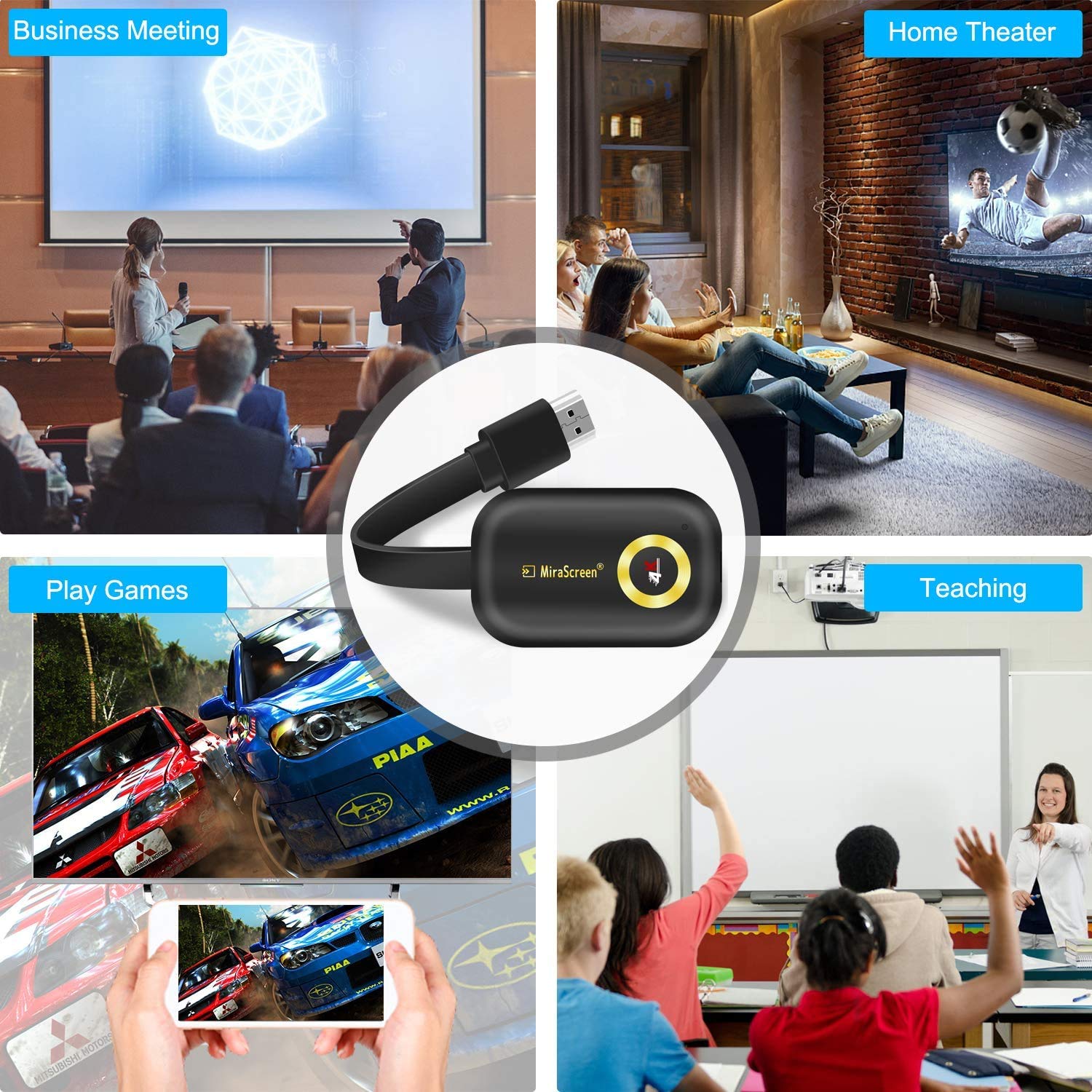
At home: you can mirror your phone/tablet to your TV, no need to stare at the phone alone, watch TV together and free your hands. At hotel: Setting the TV or TV box is a little troublesome? Just mirror your mobile device to TV or projector by using this item. In a meeting room: No need other cables, just connect this item to mirror your tablet pc on your projector wirelessly. In a classroom: Share your content of courses on big screen wirelessly.
How do you use it?
Pair it to use, no need to download apps. For iOS Users: Connect it in WiFi list and connect it to your WiFi, then pair it via Airplay to mirror the screen. For Android Users: Press the button to switch to Miracast(Android) mode. Then pair it via Miracast to mirror the screen. Connected once, screen mirroring directly next time.


Connection for iOS(iPhone/iPad) Users:
Step 1. Connect the SSID of this item in WiFi list on your iOS device
Step 2. Access IP address 192.168.203.1 to open the Anycast Setting Menu, connect to your wifi here is very important. You can set up your prefered options, too.
Step 3. Pull up Control Center on your iOS device and select this item to do screen mirroring.
Connection for Android Users(Only one step):
Method 1. Open Miracast and select this item to screen mirroring. Notes: Miracast: Screen mirroring, Multicreen, Smartview, WiFi Display, Casting etc.
Method 2. If you are not sure about Miracast, you can download EZMira App and connect this item to do screen mirroring.
Connection on Windows
For Windows 8.1, execute “Windows Start Menu > Settings > PC and devices > Devices > Add a device”, and then search for MiraScren dongle.
For Window 10, execute “Windows Start Menu > Settings > Connected devices > Add a printer or scanner”, and then search for MiraScren dongle.
Now your Windows screen will be shown on your TV through MiraScren connection.
Google Home App Casting on Android
Step 1. Connect the SSID of this item in WiFi list on your Android device
Step 2. Access Google Home App and click on Cast and select this item to do screen mirroring.


Main Features of WiFi Dongle
WiFi Band: 2.4GResolution: 4K/1080P/720PPower: 5V/1A (come with Micro USB Cable)Support Google Home App mirroring &Chrome Mirroring
Package Includes:
1 x WiFi Display Receiver1 x Micro USB & WiFi Module Cable1 x English User Manual

Installation of Wireless display adapter
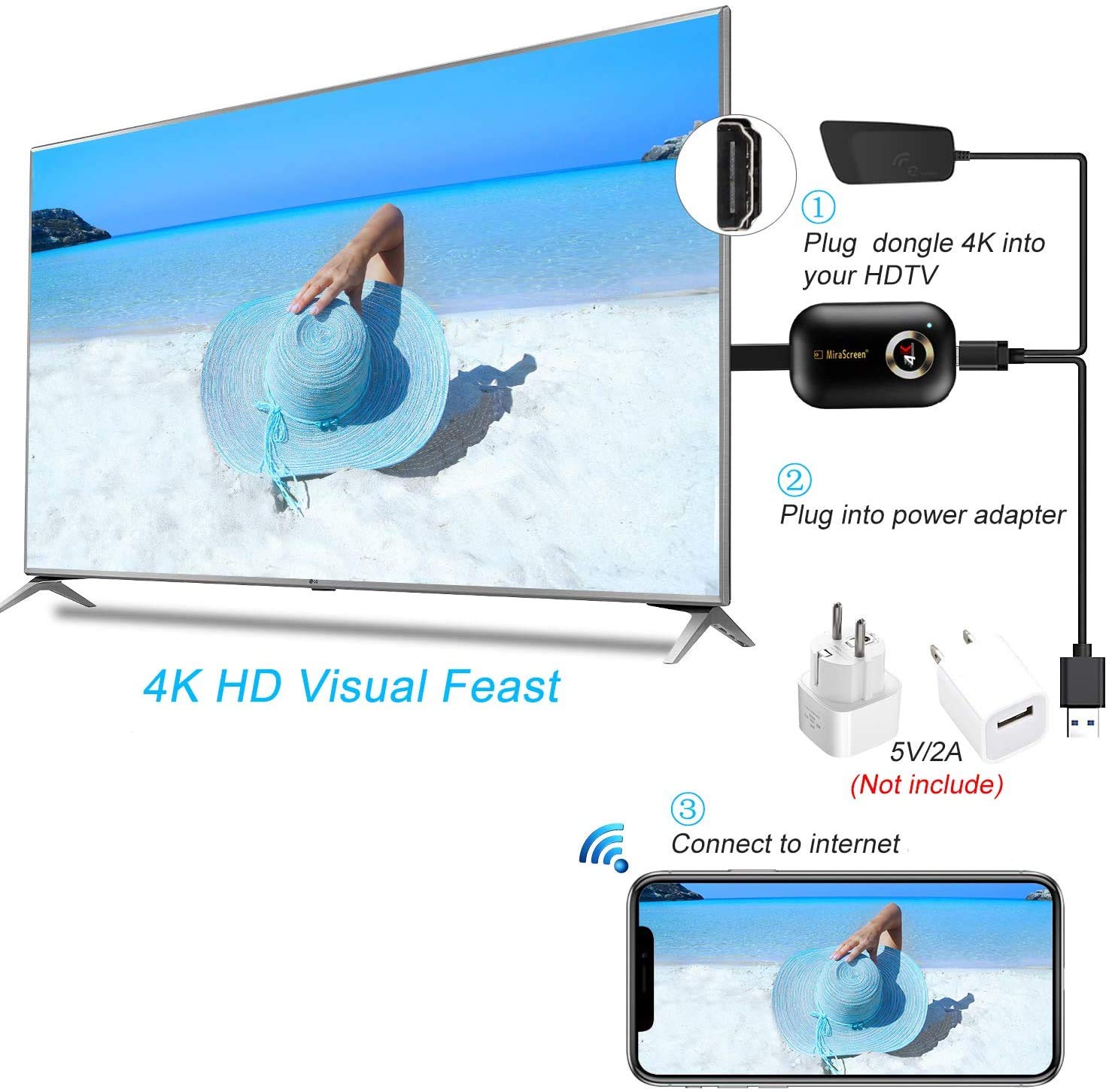
1. Plug MiraScren dongle into the HDMI port on your TV/projector and switch the TV/projector to the right input source.
2. Plug the WiFi cable (micro USB head) into MiraScren dongle and plug the USB cable into an external USB power adapter(the power adapter is not included).
3. After connection, MiraScren page shows up on your display now.

About EZMira App
EZMira is a companion app, you can download this App from Aple store/ playstore for free.
For Android Users, if you are not sure about Miracast funtion, you just download this EZMira app. EZMira app can help locate your Miracast function. After you download this app, connecting to this item is much easier, just access the App and click on Connect and select this item, the whole screen will be mirrored.
Setting menu can be accessed in EZMira App, too.

Widely Usage
【4K Ultra HD Display】 Work with 4K resolution, this miracast adapter offers you the most clear and vivid images in a large screen. You can directly mirror or cast your phone, pad, laptop to HDMI devices such as TVs, projectors and monitors.
【Setup for ios Users】Connect Mirscreen Dongle in WiFi list on your ios device, b. Access IP address 192.168.203.1 via a browser to connect to wifi internet, c. Confirm your phone is connected to the same wifi, d. Open Airpaly Miroring to cast your ios screen to your TV wirelessly. Now you see what shows on your iOS device on TV.
【Setup for Android Users】 Open Miracost function on your Android device and select Anycast to cast your device to TV. If you dont know about Miracost, you can download “ezmira” App by scan the QR code on screen, now you open “ezmira” App to connect to Anycast, it will guide you. Now your small screen will be mirrored to big screen.
【Wide Compatibility】Support Miracost/Airplay/DLna. Compatible with Android 4.4+ and ios 9.0+, macos10+, Windows 8.1+(must be Miracast enabled, please check that first). While friends gathering or family reunion, you can share photos or videos or movies from phone/tablet to your big screen wirelessly. Share presentation or files on big screen in conference or classroom.
Customers say
Customers have mixed opinions about the streaming media player’s quality, with some finding it useful while others consider it the worst product. The functionality receives negative feedback, with one customer reporting that the in-built wireless projection feature doesn’t work properly.
Related Post

TOSHIBA 108 cm (43 inches) C350NP Series 4K Ultra HD Smart LED Google TV 43C350NP (Black)
Price: (as of – Details) From the brand Resolution: 4K Ultra HD (3840 x 2160) [...]
Amazon Brand – Solimo Clear Back Cover Case for Redmi Note 13 Pro Plus | Shock Proof Design | Transparent Back Cover for Redmi Note 13 Pro Plus (TPU, Transparent)
Price: (as of – Details) Now, Customize your phone cases with Our Dirt-resistant beautiful cases. [...]